
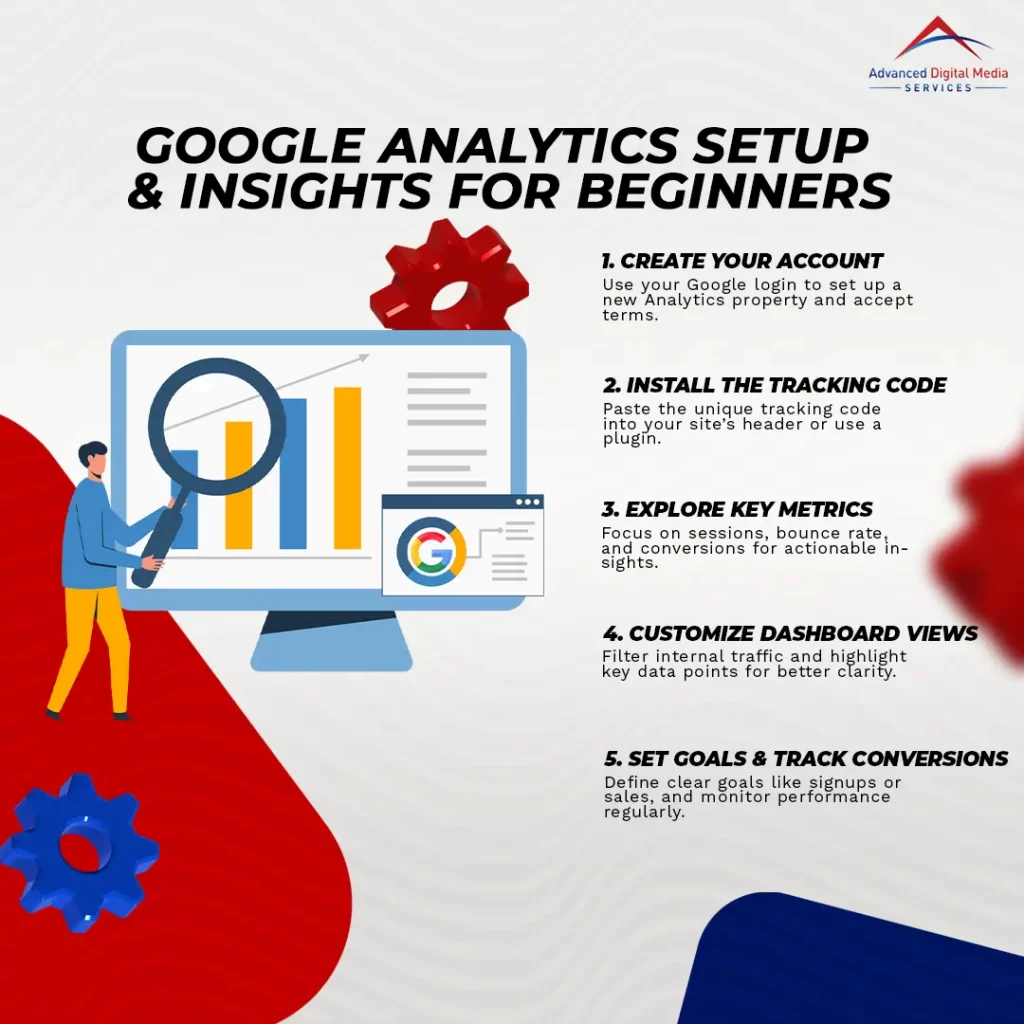
Setting up Google Analytics is an essential step for anyone wanting to track their website’s performance. First, create an account by signing in with your Google account and filling in the necessary details. Then, install the tracking code on your website’s header. Once you’ve done that, familiarize yourself with the dashboard to analyze key metrics and improve your online strategy. The more you investigate, the more ways you’ll find to improve your website’s performance.
Key Takeaways
- Create a Google Analytics account by signing in with your Google account and filling in the required setup details.
- Install the tracking code by copying the unique ID from the Admin section and pasting it into your website’s HTML header.
- Familiarize yourself with the Google Analytics dashboard layout, focusing on sections like audience, acquisition, and behavior for effective data analysis.
- Set clear goals for your website, such as sales or sign-ups, to measure success and implement conversion tracking to assess achievement.
- Schedule regular data reviews to identify trends, evaluate performance metrics, and adjust strategies for ongoing improvement.
Understanding the Basics of Google Analytics
Google Analytics is a powerful tool that tracks valuable data about your website’s performance and user behavior. Understanding what it measures and the key metrics you should focus on can help you make informed decisions to enhance your online presence. Let’s break down the essentials so you can start leveraging this data effectively.
What Google Analytics Tracks and Why It Matters
Understanding what Google Analytics tracks is essential for any business aiming to enhance its online presence. By following a Google Analytics setup guide for beginners, you can gather valuable insights about your website’s performance. Here’s what Google Analytics tracks and why it matters:
- Website Traffic: Understand how many visitors your site gets.
- User Behavior: See how users interact with your pages.
- Conversion Rates: Measure how well you turn visitors into customers.
- Traffic Sources: Identify where your visitors are coming from (organic, paid, etc.).
- Demographics: Gain insights into your audience’s age, gender, and location.
These metrics provide the foundation for making informed decisions to improve your online strategy and drive growth.
Key Metrics Every Beginner Should Know
When diving into Google Analytics, there are several key metrics you should familiarize yourself with to truly grasp your website’s performance. First, focus on sessions, which represent the number of visits to your site. Then, look at users, indicating how many unique visitors you’re attracting. Bounce rate is another important metric, showing the percentage of visitors who leave after viewing just one page. Additionally, check average session duration, which reveals how long visitors stay engaged with your content. Finally, conversion rate is essential for understanding how well your site turns visitors into customers. By tracking these metrics, you’ll develop a solid foundation in Google Analytics for beginners, helping you make informed decisions to improve your website’s effectiveness.
Creating and Setting Up Your Google Analytics Account
Setting up your Google Analytics account is an essential first step in tracking your website’s performance. You’ll need to create an account and then install the tracking code on your site to start collecting data. Let’s go through the process so you can get started right away.
How to Create a Google Analytics Account
Creating a Google Analytics account is essential for tracking your website’s performance and understanding user behavior, especially if you want to improve your online marketing strategy. Follow this simple guide to set up your account:
- Go to the Google Analytics website.
- Click on the “Start for free” button.
- Sign in with your Google account or create one.
- Fill in your account setup details, including property name and website URL.
- Accept the terms of service and click “Create.”
This step-by-step process is part of a broader Google Analytics tutorial for beginners, ensuring you’re equipped to interpret data effectively. Once your account is set up, you’re one step closer to revealing valuable insights about your audience and their interactions with your site.
Installing the Tracking Code on Your Website
To start tracking your website’s performance, you’ll need to install the Google Analytics tracking code. First, log in to your Google Analytics account and navigate to the admin section. Under the property column, click on “tracking Info” and then “tracking code.” You’ll see your unique tracking ID and the code snippet to add to your website.
Copy this code and paste it into the header section of your website’s HTML, right before the closing tag. If you’re using a CMS like WordPress, you can use a plugin to simplify this process. For those new to this, consider enrolling in Google Analytics training for beginners to help you understand the setup and maximize your tracking effectively.
Navigating the Google Analytics Dashboard
Now that you’ve set up your Google Analytics account, it’s time to explore the dashboard. You’ll find various reports and data sections that help you track your site’s performance and understand user behavior. Plus, customizing views allows you to focus on key performance indicators that matter most to your goals.
Overview of Reports and Data Sections
As you immerse yourself in Google Analytics, understanding the dashboard’s layout is essential for making sense of your data. To get the most out of Google Analytics as a beginner, understanding the essential reports is crucial for improving your analysis. Here’s a quick overview of the main sections:
- Audience: Understand who your visitors are.
- Acquisition: Discover how users find your site.
- Behavior: Analyze how visitors interact with your content.
- Conversions: Measure your success in achieving goals.
- Real-Time: Monitor activity as it happens.
Navigating these reports will give you valuable insights into your website’s performance, helping you make informed decisions. As you explore, keep in mind that regular review of these sections can greatly improve your digital marketing strategies.
Customizing Views to Monitor Key Performance Indicators
Customizing views in Google Analytics allows you to focus on the key performance indicators (KPIs) that matter most to your business. When you set up your Google Analytics for website tracking, creating tailored views helps you filter out irrelevant data. Start by defining which KPIs you want to monitor, such as conversion rates, bounce rates, or traffic sources. You can create separate views for different campaigns or segments of your audience, making it easier to analyze performance. Don’t forget to apply filters that exclude internal traffic or spam referrals, ensuring your data remains clean. By honing in on specific metrics, you gain valuable insights that drive better decision-making and enhance your overall digital strategy.
Using Google Analytics to Improve Your Website Strategy
Now that you’re familiar with the Google Analytics dashboard, it’s time to focus on how you can use it to enhance your website strategy. By tracking user behavior and understanding traffic sources, you’ll gain valuable insights into what works and what doesn’t. Plus, setting goals and measuring conversions will help you refine your approach for better results.
Tracking User Behavior and Traffic Sources
Understanding user behavior and traffic sources is essential for refining your website strategy, especially when leveraging Google Analytics. For Google Analytics beginners, tracking how visitors interact with your site can reveal valuable insights. Here are key aspects to focus on:
- User demographics: Learn who your audience is.
- Traffic sources: Identify where visitors are coming from (e.g., social media, organic search).
- Behavior flow: Analyze the paths users take through your website.
- Bounce rate: Understand how many visitors leave after viewing just one page.
- Session duration: Measure how long users stay engaged.
Setting Goals and Measuring Conversions
After you’ve gained insights into user behavior and traffic sources, the next step is to set goals and measure conversions effectively. In Google Analytics for business, defining clear goals helps you understand what success looks like for your website. Whether it’s increasing sales, sign-ups, or downloads, specify these goals in your Analytics account. Next, set up conversion tracking to measure how well your site meets these objectives. You can use features like destination goals, event tracking, or eCommerce tracking, depending on your needs. Regularly review your conversion data to identify trends, assess performance, and make informed decisions. This approach not only enhances your strategy but also drives meaningful results for your business.
Frequently Asked Questions
How Much Does Google Analytics Cost for Businesses?
Google Analytics itself is free for most businesses, offering essential features. However, if you need advanced capabilities, you might consider Google Analytics 360, which comes with a significant cost, tailored for larger enterprises.
Can I Use Google Analytics Without a Website?
Imagine a ship steering through fog without a compass. You can’t use Google Analytics without a website; it’s designed to track user interactions online. Without a site, there’s no data to analyze or insights to gain.
How Do I Link Google Analytics to My Google Ads Account?
To link Google Analytics to your Google Ads account, go to the Admin section in Analytics, select ‘Google Ads Linking,’ and follow the prompts to connect your accounts for better tracking and reporting on campaigns.
What Is the Difference Between Universal Analytics and GA4?
Imagine exploring a new world; Universal Analytics focuses on sessions and page views, while GA4 emphasizes user engagement and events. You’ll find GA4’s insights more tailored to today’s data-driven landscape, enhancing your analytical journey.
How Can I Delete a Google Analytics Property?
To delete a Google Analytics property, go to admin, select the property you want to remove, click property settings, and choose “Move to Trash Can.” Confirm the deletion, and it’ll be permanently removed after 35 days.
Conclusion
You’ve opened the door to a treasure trove of insights! By setting up Google Analytics, you’re now equipped with the compass to navigate the vast ocean of your website’s performance. With each click and visitor, you’re piecing together the puzzle of your audience’s behavior. Embark on a data-driven adventure and let the currents of knowledge propel you towards refining your online approach. The opportunities are vast, and your path to triumph begins today!